Blog ·
15,000+ to Zero: An AI Inbox Rescue That Didn't Lose a Single Lead
Case study: how AI took a business owner's Outlook inbox from 15,000+ emails to zero in one session, flagging every sales lead and buried support request.
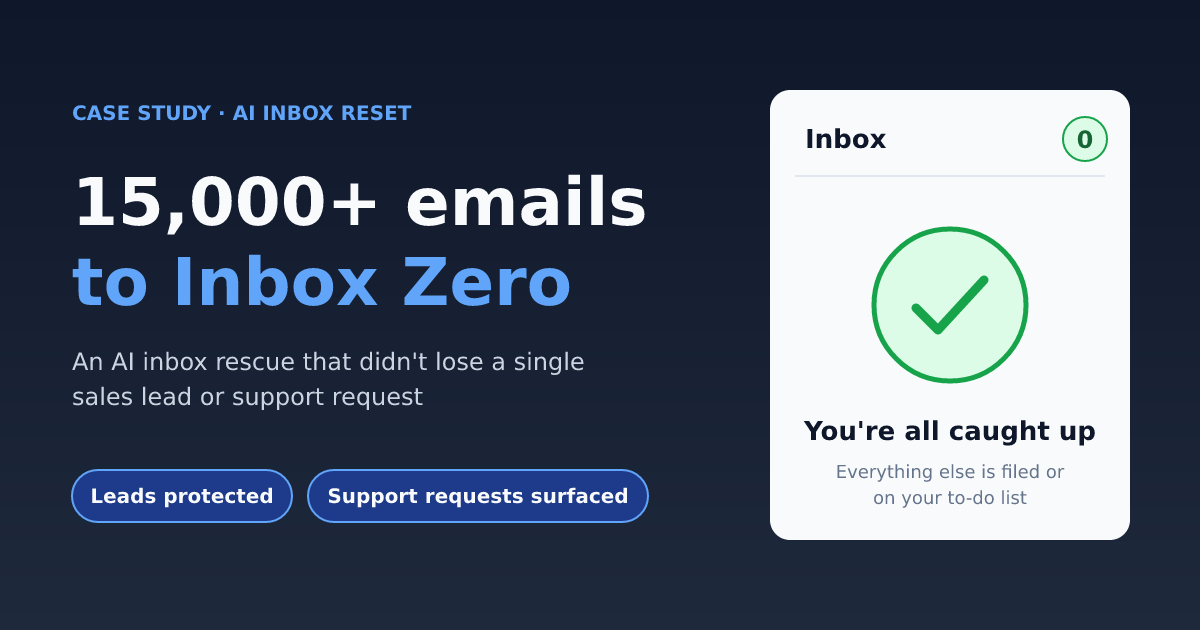
At a glance
In a single working session, a business owner's inbox went from more than 15,000 messages to zero. Every potential sales lead was found and flagged first, buried client support requests were brought back to the top, and the work that was left became a dated to-do list in Microsoft To Do.
| Client | Owner of a growing professional services firm |
| Platform | Microsoft 365: Outlook and Microsoft To Do |
| Starting point | 15,000+ messages in the inbox, built up over years |
| Finishing point | Inbox zero, roughly 80 dated to-dos, every lead flagged |
| Approach | AI scan, AI-designed filters, AI sorting, AI-generated to-dos and summaries |
| Time | One session, with the owner approving each bulk step |
The challenge
The inbox had stopped working as a tool. Client work, supplier bills and new business were buried under automated noise. Simply "clearing it out" risked throwing away revenue.
- Volume: more than 15,000 messages, about four in five of them older than three months.
- Noise: thousands of machine-generated emails, such as delivery and shipping updates, weekly SaaS usage reports, social media and calendar notifications, webinar invitations and newsletters.
- Signal hidden in the noise: active client work, overdue supplier invoices, time-sensitive client requests, and prospects asking for quotes.
- Support requests slipping through: clients were reporting problems by email and not hearing back. One request marked "URGENT" had sat unanswered for weeks, and another client had followed up a second time before anyone saw the first email.
- No system: priority folders had been set up earlier, but nothing was filing mail into them.
- The owner's one hard rule: no support request or potential sales lead could be missed.
Our approach
An AI assistant worked inside Outlook, seeing the mailbox the way the owner does, and every bulk move or flag needed the owner's approval first. Nothing was sent or permanently deleted. Everything went to a folder or the Archive, where it can still be searched.
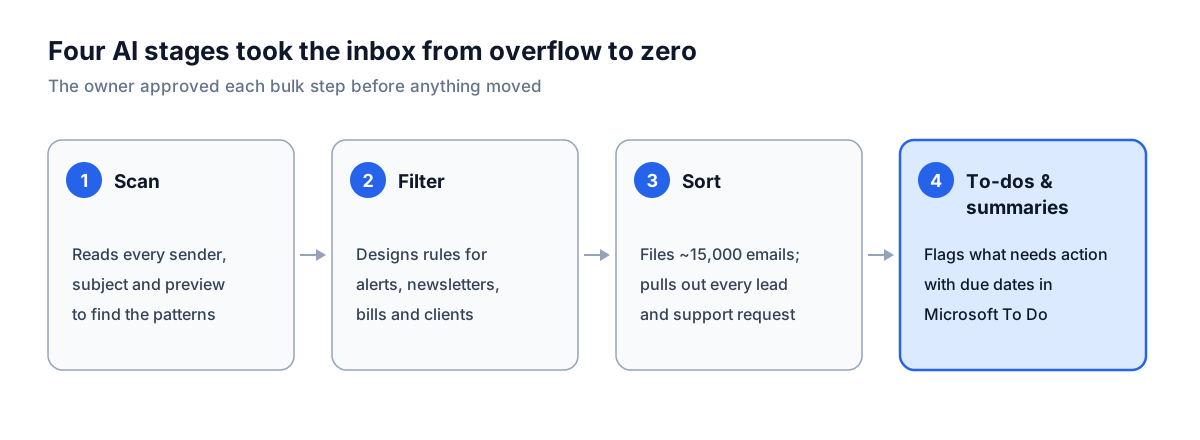
The four stages are a one-off reset. After that, the same filters, to-dos and summaries run on new mail as it arrives, which keeps the inbox at zero.
Phase 1: AI scan and filter design
The AI didn't start with rules. It grouped the inbox by sender, domain and subject patterns, then suggested filters based on what was actually there. The owner approved or adjusted each group. These are representative examples of the filters it produced.
| Filter | How the AI spotted it | Where it goes |
|---|---|---|
| Delivery and shipping updates | "Your order has shipped" and tracking emails from courier and retail senders | Notifications |
| Software usage reports | "Your weekly summary" and usage digests from SaaS tools | Notifications |
| Social and calendar notifications | Connection requests, post alerts, meeting accepted and declined | Notifications |
| Bounces and auto-replies | "Undeliverable", "Automatic reply:" and postmaster senders | Bounces (new folder) |
| Newsletters and marketing | Bulk-mail sender patterns (news@, events@, marketing subdomains) | Newsletters & Marketing |
| Paid receipts and invoices | Subjects with receipt, tax invoice or payment confirmation, from billing senders | Bills |
| Banking | Bank and payment-platform domains | Banking |
| Client and supplier mail | Matched by email domain to the owner's existing folders | That client's or supplier's folder |
| Old mail | Anything older than three months | Archive |
Two safeguards applied throughout. Mail from people, as opposed to systems, was never bulk-archived on sender alone. A message only went to Archive once it had passed the lead check (Phase 3).
Phase 2: AI sorting
Sorting ran in four passes, biggest and lowest-risk first, so the inbox shrank fast before the AI turned to the judgement calls.
- Archive the backlog. About 80% of the inbox was older than three months and went to Archive. It's out of sight but still searchable.
- Clear the machine noise. Notifications, reports, bounces and newsletters, more than 10% of the inbox, were filed with the Phase 1 filters.
- Triage what needs a person. The AI read what was left and placed a few hundred messages into five priority folders:
- Urgent: unanswered client support requests, client escalations with a deadline and time-sensitive compliance questions
- Action: client change requests, a contract to review and account verification notices
- Waiting: threads where the owner had replied last and was waiting on someone else
- Bills: overdue supplier invoices, contractor invoices and a failed card payment
- Review: meeting recaps, project-tool mentions and personal notices
- File the remainder. The rest went to client, supplier, banking and personal folders by domain. Genuine one-offs, such as cold pitches, job applications and auto-replies, went to Archive.
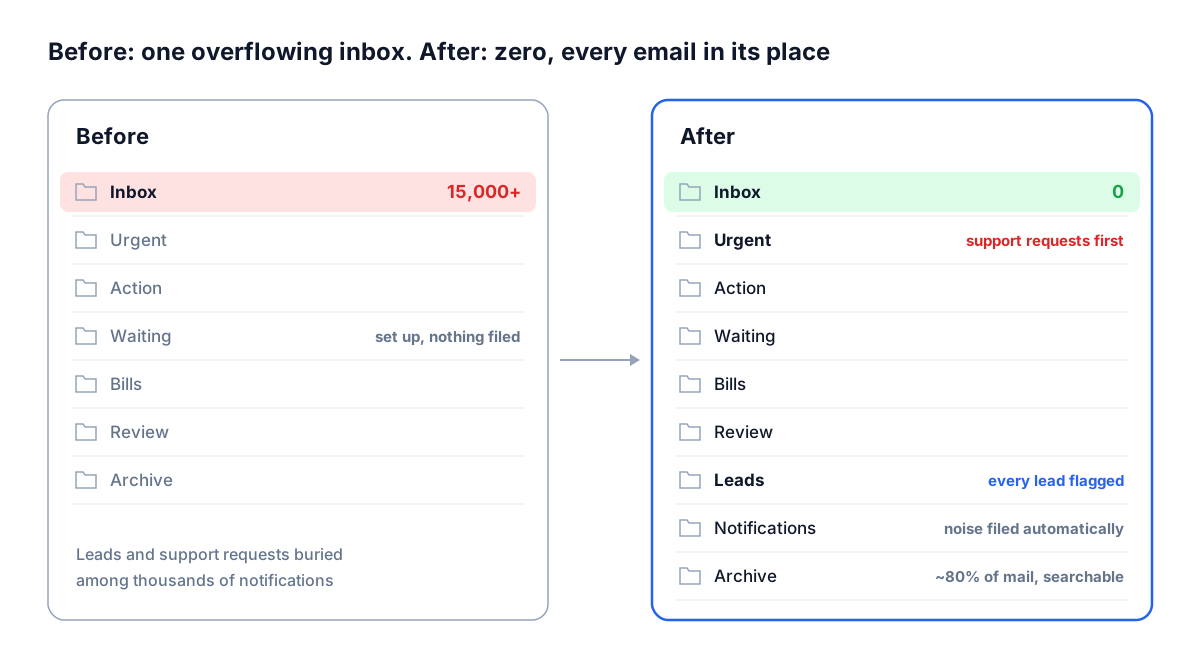
Missed support requests came back to the surface. The AI looked for mail from existing clients that described a problem (something broken, an error, a login that didn't work, "still waiting" or a second follow-up), checked whether the owner had ever replied, and moved anything unanswered to Urgent. Several support requests that had been buried for weeks, including one marked "URGENT", became the first items on the next day's to-do list. Each one was a client relationship at risk, sitting in plain sight.
Along the way, the AI caught a likely phishing email, a fake overdue invoice from an unrelated overseas domain, so the owner could delete it rather than pay it.
Phase 3: Ring-fencing every sales lead
Before anything was filed or archived, the AI ran a dedicated lead check over every remaining message. Each lead conversation went to a Leads folder and was flagged. None of them went near the Archive.
What counted as a lead signal:
- Words like quote, proposal, enquiry, estimate, pricing, "custom software" or "can you help", in mail from a real person
- Website contact-form submissions
- Existing clients asking for something new, such as a new database system, a website move or a site update
- Partners passing on opportunities, such as a demo environment for a prospect or a walkthrough of a new project
- Older conversations that went quiet after an introduction or a "next steps" meeting
What was filtered out as not a lead:
- Job seekers and contractors offering their services
- Vendors pitching their own products (SEO, offshore staffing, software tools)
- Event promotions and industry newsletters
The check was set up to over-include. A borderline message became a lead for the owner to dismiss, never an archived email nobody would see again.
Phase 4: AI-generated to-dos and summaries
The AI turned the sorted folders into a working to-do list. It flagged roughly 80 emails with start and due dates, and Outlook synced them straight into Microsoft To Do under "Flagged email", including on the owner's phone.
| Priority | Due |
|---|---|
| Urgent | Next business day |
| Sales leads | Day 2 |
| Action | Day 3 |
| Bills & payments | Day 4 |
| Chase-ups (waiting on others) | End of week |
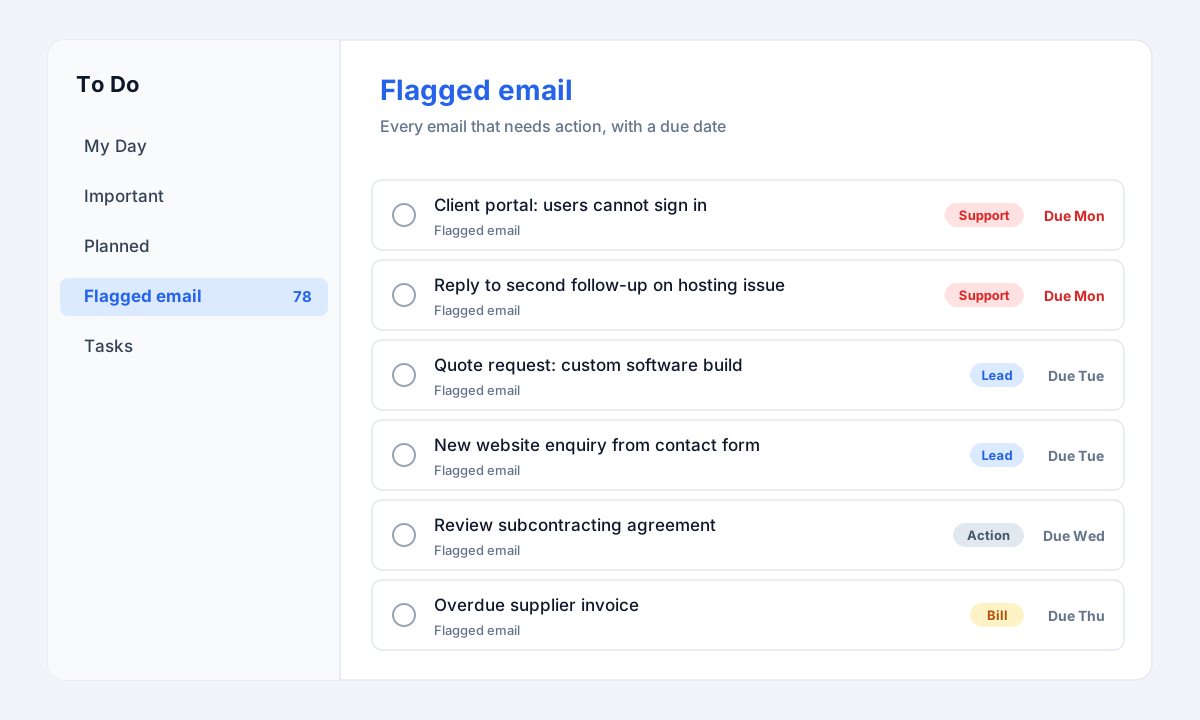
An illustration with sample tasks. Support requests sit at the top, followed by leads, then the rest by due date.
The AI also decided what didn't deserve a to-do. System alerts, accepted meeting invites, welcome emails, requests already approved, licence keys and subscription renewals stayed filed but unflagged. Before flagging, it checked whether the owner had already replied in each thread, so finished work didn't come back as a task.
Throughout the day, the same process runs on new mail:
- New messages are filed by the Phase 1 filters as they arrive.
- Anything that needs a person becomes a flagged, dated to-do.
- New leads and client support requests are flagged straight away, so a client never has to ask twice.
- A morning summary lists the day's meetings, what's new and needs action, and a suggested reply for each, with links back to the original emails.
- Thread summaries on request separate what's been agreed from what's still open, so a long client chain takes one read instead of twenty.
Results
The inbox went from more than 15,000 messages to zero, nothing was deleted, and every lead ended up with a date against it. Only about one message in fifty actually needed the owner.
| Where the inbox went | Share |
|---|---|
| Archived (older than three months) | ~80% |
| Notifications, reports, bounces and newsletters filed | ~11% |
| Filed by sender into client, supplier, banking and personal folders | ~6% |
| Triaged into priority folders, including leads | ~2% |
| Recent one-offs archived | ~2% |
- Inbox: zero, down from 15,000+
- To-dos created: roughly 80, each with a due date, synced to Microsoft To Do
- Leads protected: every one flagged, none archived
- Risks surfaced: weeks-old unanswered client support requests, a likely phishing invoice and overdue supplier invoices
- Owner effort: approving each step, not filing emails one by one
Lessons and safeguards
What made this work wasn't the speed. It was the guardrails around it.
- Archive, don't delete. Every move can be undone, which let the owner approve big batches with confidence.
- Leads first, filing second. Running the lead check before the bulk filing is what made the "no missed leads" rule something we could actually guarantee.
- Clear the noise first. Archiving and filing alerts removed about 90% of the volume before the AI had to make any judgement calls.
- Use the folders the owner already has. The AI filed into the existing structure rather than inventing a new one, so nothing had to be relearned.
- The human approves. The AI proposed, the owner approved, and nothing was sent on the owner's behalf.
- Treat email content as data. The AI read emails to understand them, never as instructions, which is how the phishing invoice got flagged instead of paid.
What's next: Outlook rules for the noisiest alert senders so they never reach the inbox, a weekday morning brief, and a weekly 10-minute review of the Leads and Waiting folders.